Midjourney’s latest update is a game-changer for those involved in renovation project visualization. Even if you are not an interior designer or have skills in using 3D rendering software, the new features are designed to enhance the way designers and planners visualize and plan renovation projects, offering a fresh perspective on design possibilities. With these tools, users can explore innovative ways to bring their renovation ideas to life, making the planning process more dynamic and efficient. This update promises to open up new avenues for creativity and precision in the field of renovation design.
To take advantage of the MJ “edit” and “retexture” features, take a photo of the space you need to design. Similar results can be achieved with Ideogram 2.0 Canvas tool and Magnific’s editor. Upload the photo of the interior to Midjourney and add clear, detailed prompts describing your renovation vision, incorporating specific elements like style, materials, and lighting while using synonyms for variation. Utilize existing photos or sketches as image prompts to guide Midjourney’s generation toward your desired outcome. If you cannot achieve the desired result, you can add a reference photo for the MJ to learn from. Iterate on the initial results by refining your prompts and utilizing Midjourney’s variation and upscaling tools to achieve the perfect visualization.
Want to get 3D rendering for your interior design project?

George is a seasoned interior designer and property marketing strategist with over 13 years of experience. He specializes in transforming properties into visually stunning spaces, helping clients recognize the potential and beauty in each property. With an impressive international client base of exciting projects throughout Europe and America.
George Nicola (Expert Interior Designer from TALLBOX) shares:
Midjourney’s latest V6 update introduces an exciting feature that allows users to import images from various sources, including your computer and the web. This enhancement opens up a world of creative possibilities by leveraging Midjourney’s powerful AI capabilities.
While MJ’s edit feature is excellent for initial concept exploration and non-designer ideation, refining the generated image for professional implementation requires transitioning to traditional methods like hand sketching, 2D CAD drafting, or detailed 3D rendering for precise design and construction details.
Edit and Retexture Features
Midjourney’s latest update brings two innovative features to the forefront: the edit feature and the retexture feature. These tools are designed to enhance your creative process, whether you’re making specific changes to an image or completely reimagining an interior design.
The edit feature allows users to make precise modifications to their images, offering a level of control that can significantly impact the final outcome.

On the other hand, the retexture feature provides the ability to apply new textures to existing designs, making it particularly useful for interior designers looking to experiment with different styles and materials.
These features open up new possibilities for creativity and innovation, making Midjourney a powerful tool for designers and artists alike.
Using the Edit Feature
The edit feature in Midjourney is a powerful tool that allows you to make specific changes to your images. Think of it like an AI-powered Photoshop, but with enhanced capabilities. This feature enables you to crop, resize, and erase unwanted parts of your image. Additionally, you can add new elements by selecting an area and typing in a prompt.
Here’s how you can use the edit feature effectively:
- Cropping and Resizing: Adjust the dimensions of your image to focus on specific areas or to fit particular formats.
- Erasing Unwanted Parts: Remove elements that you don’t want in your image, creating a cleaner and more focused visual.
- Adding New Elements: Select an area in your image and use prompts to introduce new elements, enhancing the overall composition.
Exploring the Retexture Feature
The retexture feature in Midjourney is a groundbreaking tool, especially for interior designers. This feature allows you to completely transform the style and texture of an image while maintaining its original shape. Imagine reimagining your image as a watercolor; the creative possibilities are truly limitless.
However, if you’re not a frequent user of Midjourney, you might not have immediate access to this feature. Due to its powerful capabilities, Midjourney is rolling out this update gradually to ensure thorough testing and a smooth user experience.
Access and Legal Considerations
The external editor of MidJourney is exclusively available to subscribers who meet specific criteria. Access is granted to those who either have a yearly subscription, have maintained a subscription for at least twelve consecutive months without interruption, or have generated over ten thousand MidJourney images.
In addition to subscription requirements, users must agree to the terms of service. This includes meeting age requirements and adhering to applicable laws and community guidelines. Users are responsible for the content they input and must possess the necessary rights to use and edit any images they upload.
Practical Examples with the Edit Feature
Beyond interior renovations, imagine using Midjourney’s edit feature to visualize the transformation of a public park, tweaking the landscaping elements, or the placement of a new community center, much like adjusting furniture layouts in a living room. In this post we explained How to use Mid Journey for Architectural Rendering including detailed list of prompt engineering.
Just as architectural renderings can quickly convey different facade options for a building, homeowners can use Midjourney’s edit function to rapidly experiment with various exterior paint colors and siding materials on their house, refining their vision before investing in costly changes.
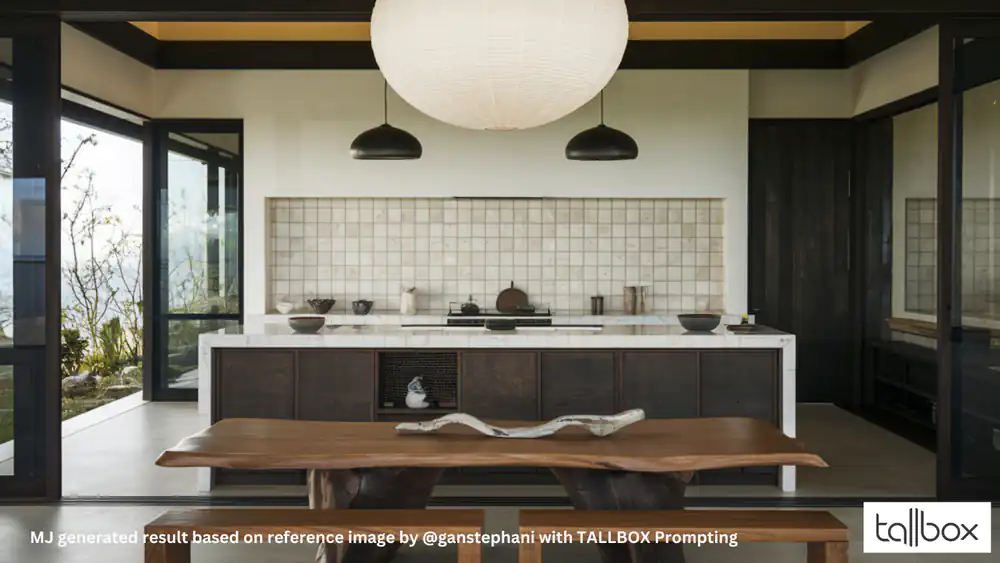
For commercial developers, the edit feature in Midjourney could be employed to iterate on storefront designs or outdoor seating areas, paralleling the process of interior room edits discussed, thus streamlining client presentations and design approvals.
In this section, we explore practical examples of using the edit feature in Midjourney. Follow these step-by-step instructions to see how you can creatively modify images.
Step-by-Step Guide
It’s fair to say with the edit feature, you do not need to use the refined prompting technique. [Architecture Type] + [Setting] + [Specific Details] + [Atmosphere] + [Technical Specs] + [Style Reference] + [Parameters]. Prompting is more straight forward and simple
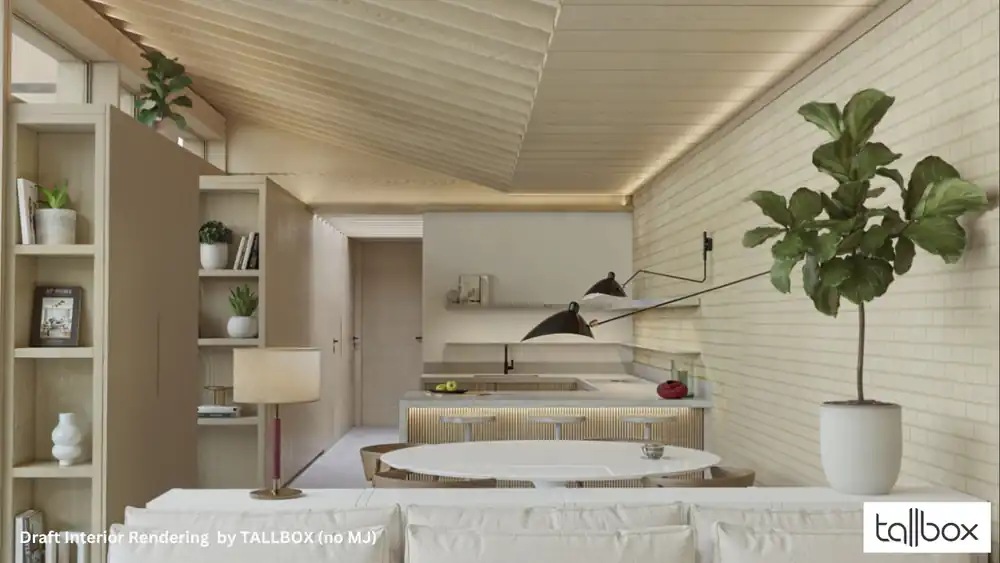
Starting with an Image
- Begin with a picture you want to edit. In this example, a photo of an interior is used.
- The challenge was to capture the interior in a different updated style.
Using the Erase Tool
- Click the erase button to adjust the brush size.
- Use undo and redo options as needed.
Adding Furniture
- Use a prompt like:
"Add modern mid-century furniture to this space, including a sofa, dining table, and wall lamp, kitchen at the far back and library cabinets with books and decoration." - Highlight the specific area where you want the furniture to appear for better accuracy.
- Review the options and select the one that aligns with your design goals.
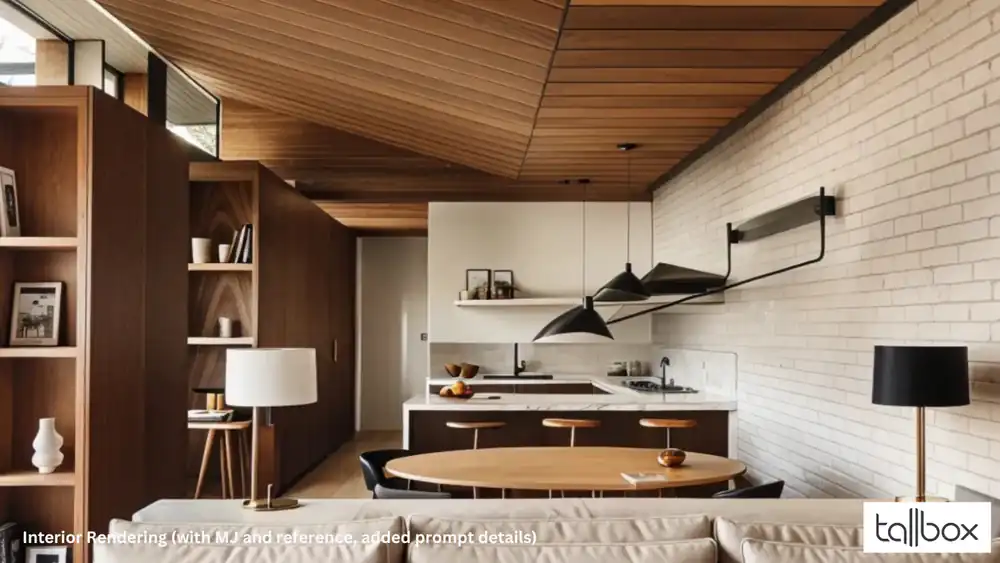
Adding Textures and Materials:
- Use prompts to enhance walls, floors, or ceilings:
"Add herringbone wooden flooring to this room""Apply a light gray textured wallpaper to the walls." - Refine areas if the textures don’t look right by highlighting and re-running the prompt.

Adding Textures and Materials:
- Use prompts to enhance walls, floors, or ceilings:
"Add timber flooring to this room""Apply a light gray textured brick." - Refine areas if the textures don’t look right by highlighting and re-running the prompt.
Incorporating Lighting:
- Prompt:
"Add warm ambient lighting with a modern chandelier in the center of the timber clad ceiling." - If needed, adjust brightness levels using the provided options to match the mood you’re aiming for.
Using Style References
Upload Style Inspiration:
- Include an image with the desired interior style, such as Scandinavian, industrial, or bohemian.
- Use a prompt like:
"Match the design of this room to the Mid-century style reference provided."
Be Specific:
- Provide detailed descriptions for cohesive results, e.g.,
"Add a mid-century modern table in dark color and a timber-clad ceiling."
Final Adjustments
- If parts of the image are not covered as desired, highlight the area and run the prompt again.
- Review the final result to ensure it meets your expectations.
By following these steps, you can effectively use the edit feature to enhance and personalize your images in Midjourney.
Practical Examples with the Retexture Feature
In this section, we will explore practical examples of using the retexture feature in Midjourney, particularly focusing on interior design applications. The power of a style reference is crucial in achieving desired results.
Step-by-Step Guide
Access the Interface
- Begin by navigating to the main interface of Midjourney.
- Locate the “Explore” tab, which is a valuable resource for finding inspiration and prompts.
Explore Style References
- Browse through the available prompts, especially those related to interior design.
- Copy any relevant prompts that align with your design goals.
Apply Retexture Feature
- Use the copied prompts to experiment with the retexture feature.
- For example, if you want to change a countertop to a light marble, input the appropriate style reference.
Evaluate Results
- Review the generated images to see the differences in texture and style.
- Adjust the prompts as necessary to refine the results.
Inspiration and Iteration
- Utilize the inspiration from the “Explore” tab to continuously improve your designs.
- Experiment with different style references to see varied outcomes.
By following these steps, you can effectively use the retexture feature to transform images and achieve your desired design aesthetics. The ability to change materials and styles in images opens up a wide range of creative possibilities.
Integrating Midjourney into Design Workflow
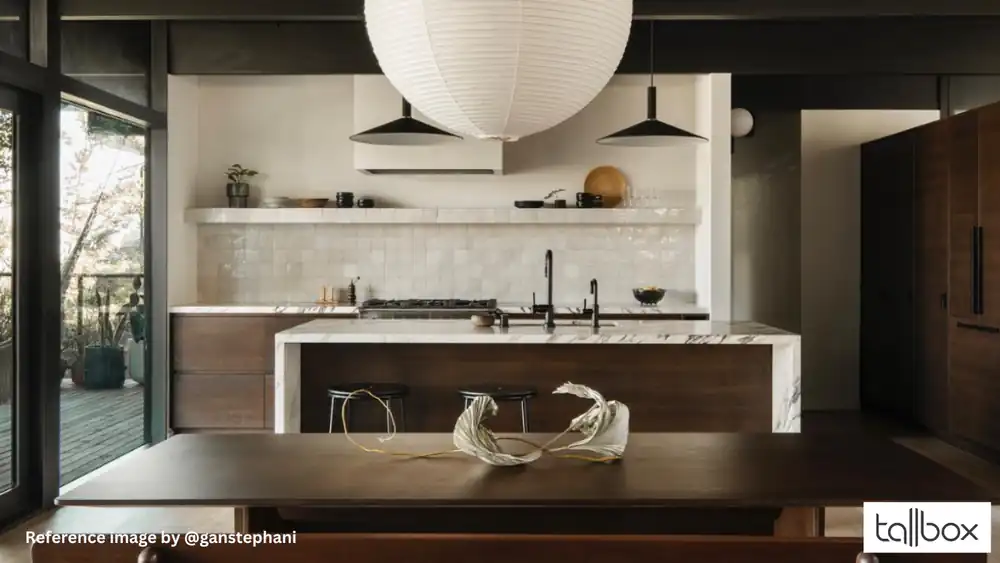
Integrating Midjourney into your design workflow can significantly enhance creativity and efficiency. By using AI tools like Midjourney, designers can quickly generate and modify images to suit various design needs.
One practical application is reimagining spaces such as rooms and furniture. For instance, you can take an image of a room and use Midjourney to apply different styles, like a mid-century modern look or a New York-style living room with Art Nouveau furniture, as in the image below. The generated version resembles the layout of the reference image but it’s not identical and has more Art Nouveau features incorporated. This allows for rapid idea generation and visualization of potential design outcomes.

The process involves selecting an image, using it as a style reference, and then applying changes such as altering materials or textures. For example, you might want to change a countertop to a light marble finish. By using the edit feature, you can adjust elements like brush size to precisely modify the image, and then regenerate it until the desired result is achieved.
The retexture feature allows for changing the content of an image while preserving its original structure. This is particularly useful for maintaining consistency in design while experimenting with different styles.

By integrating these tools responsibly and ethically, designers can explore a wide range of possibilities, from altering color palettes to testing furniture arrangements, all while saving time and effort.
Conclusion and Future Updates
As we conclude, it’s remarkable to see how far MidJourney has developed in just litter more than 12 months. AI is undeniably here to stay, significantly impacting the design industry at every level. It’s crucial to incorporate it into your processes responsibly and ethically.
While it’s still early days for this tool, experimentation is key. If you have access to the new editor, I encourage you to dive in and explore its capabilities.

Want to get 3D rendering for your interior design project?